Quickstart
In this quickstart we will publish a feedback form, fill it in once ourselves, and see the answer arrive in Automette. It takes about five minutes, and all you need is an Automette account.
1. Sign up
Go to automette.com and create an account. You land on your Home page.
2. Pick the feedback form
In the menu on the left, under Forms, click Form Library. You will see many ready-made forms for feedback, registrations, orders, requests and more.
Click Feedback survey, then Use this template. Automette adds a copy to My Forms and opens it in the form builder. You will see the form in the middle and tabs for Fields, Design, Logic, Settings and more on the side.
You can change any question here, but for now leave the form as it is.
3. Publish it
At the top right, click Publish. A message says Form published, and the form is now marked Published.
Click Copy link in that message to copy the form's address. Anyone with this link can fill in the form.
4. Fill it in
Open the link in a new browser tab. You will see the form as the people you share it with will see it:
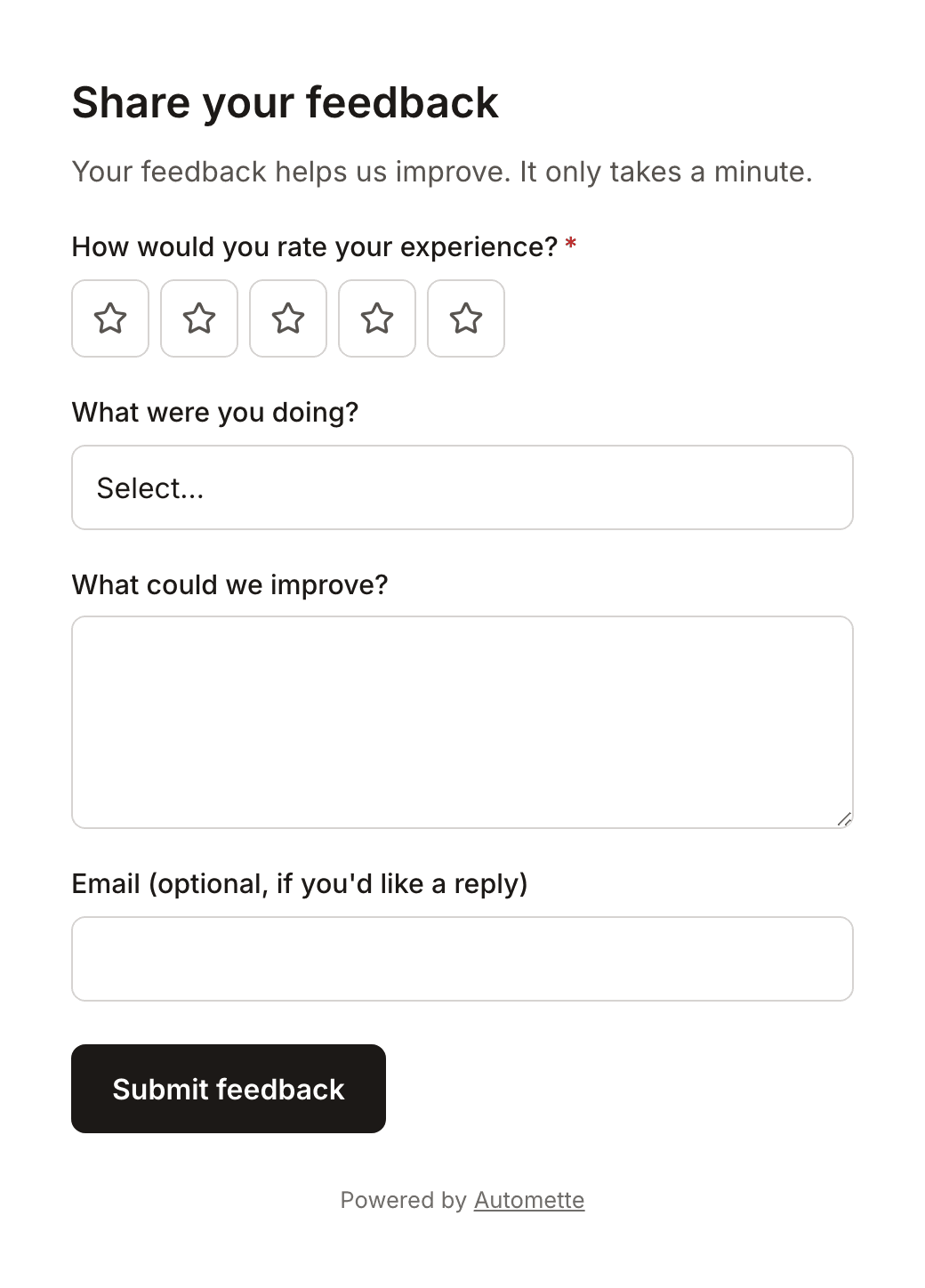
Answer the questions:
- How would you rate your experience?: click the fourth star
- What were you doing?: choose Browsing
- What could we improve?:
Clearer delivery times on the order page.
Leave the email box empty and click Submit feedback. The page says Thanks! Your response has been recorded.
5. See the response
Back in Automette, click My Forms in the menu. Next to Share your feedback, click Responses.
You will see your answer in a table, one column per question, with the time it was sent. Above the table are counts of how many people opened the form and how many sent it.
What you have made
You have published a form and collected your first response. Every new response is added to the same table, and Export CSV downloads them all as a spreadsheet.
From here:
- Change the questions or build a form from scratch.
- Share the form or put it on your own website.
- Get an email for each new response.
- Turn each response into a finished PDF, such as a certificate or a receipt.
Last updated on