Quickstart
In this quickstart we will make a certificate of completion as a PDF, with a name, a course and a date filled in. It takes about five minutes, and all you need is an Automette account.
1. Sign up
Go to automette.com and create an account. You land on your Home page.
2. Pick the certificate template
In the menu on the left, under Documents and images, click Template Library. You will see many ready-made designs for invoices, quotations, certificates, event badges, social media images, property listings, offer letters and more, each one yours to use and change.
Click Certificate of Completion. Automette adds a copy to My Templates and opens it. You will see a preview of the certificate and a section called Generate.
3. Open the form
Under Generate a document, click Generate. A form opens with one box for each thing the certificate can show: organization name, recipient name, course name and so on.
4. Fill it in
Type into three of the boxes:
- Recipient Name:
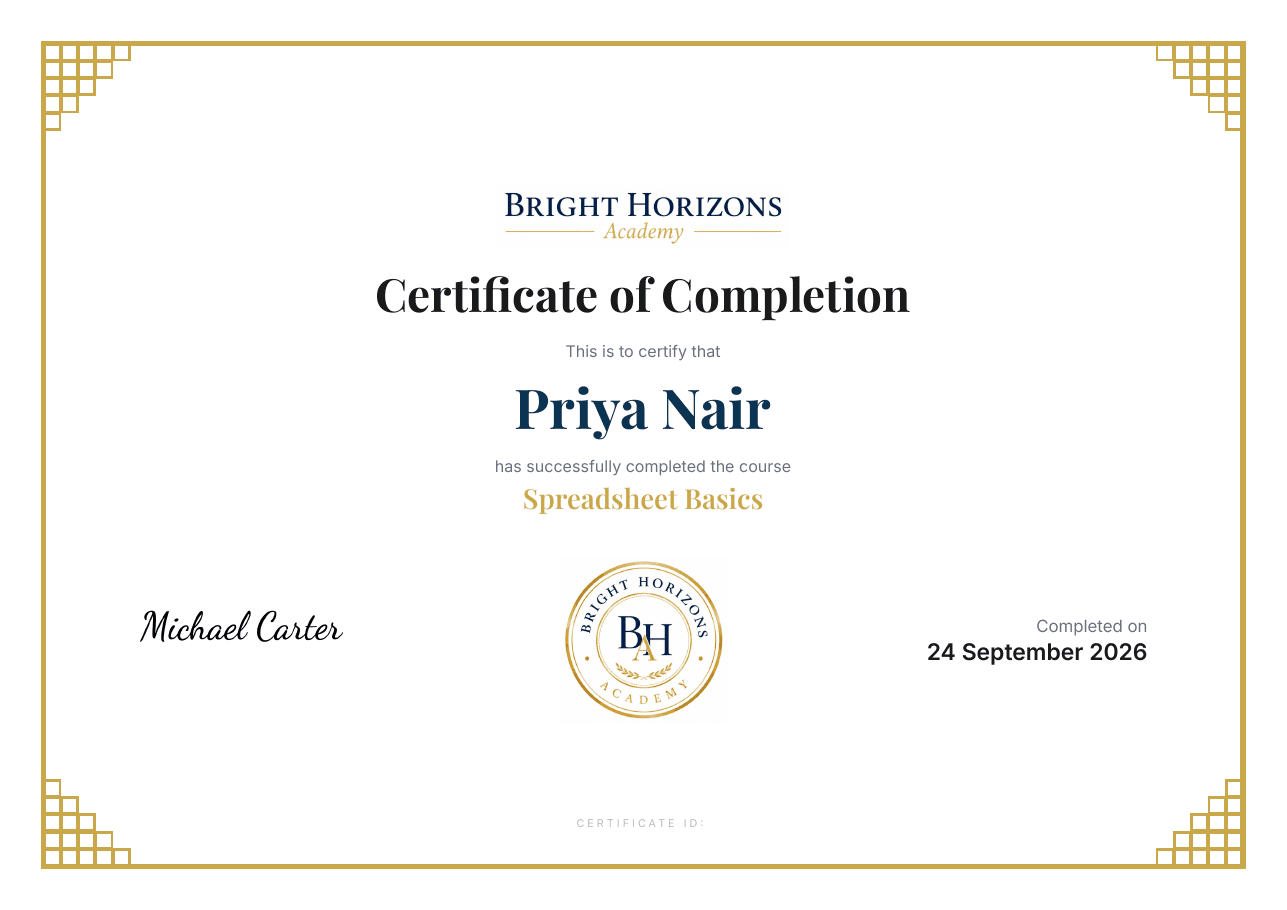
Priya Nair - Course Name:
Spreadsheet Basics - Completion Date:
24 September 2026
Leave the other boxes empty for now; anything left empty is simply left out of the document.
At the bottom, leave Output format on PDF and Link visibility on Secure, then click Generate.
5. Download it
After a few seconds the bottom of the page says Document ready. Click Download PDF.
You will see the certificate with Priya Nair's name, the course and the date in place:
What you have made
You have made your first document from a template, and it is saved. Open History in the menu to find it again and download it.
From here:
- Use another template from the library, or change this one with Edit template.
- Make your own template from scratch, or start from a Word document you already have.
- Generate many at once from a spreadsheet.
- Generate automatically when a row in Google Sheets is ready.
Last updated on